
Notifications Not Working
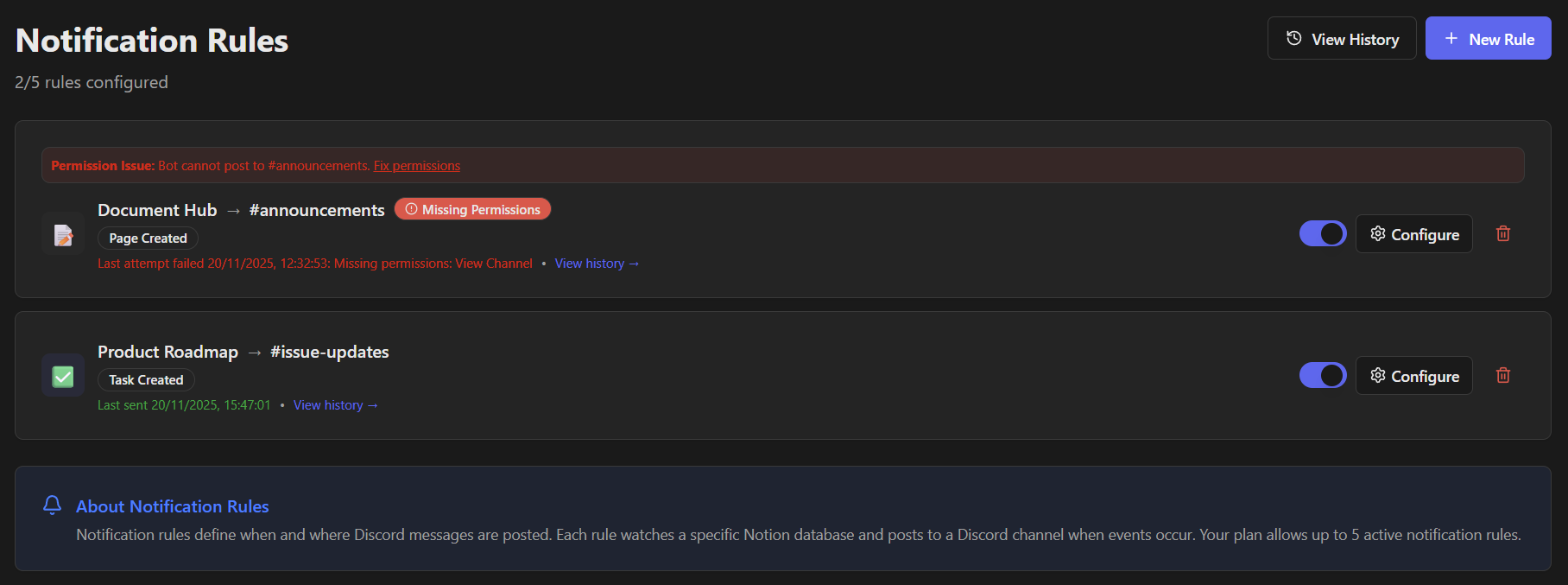
Use this page if a rule never sends, sends late, shows a blocked state, or a comment mention DM does not arrive.
Start here
- Wait up to 5 minutes before troubleshooting. Notion batching can delay delivery.
- Open Notifications and check the rule state.
- Open History on the rule and read the latest issue message.
About older blocked attempts
Notification attempts blocked because a trial expired or a subscription was inactive stay in History for 30 days. Quota blocks and other notification history remain until the account is deleted. Current subscription status does not depend on these older rows.
Match the symptom
| What you see | Most likely cause | What to do |
|---|---|---|
| Paused or Blocked | Discord permissions, missing channel, missing DM recipient, or lost Notion access | Fix the issue shown on the rule first, then turn the rule back on if needed |
| Waiting | The rule is ready but still waiting for the next matching event | Trigger the exact event type the rule watches; the rule state updates automatically after delivery |
| Comment mention DM never arrived | The person has no Notion identity link or Discord cannot deliver DMs | Check Members, then read the DM failure row in Notification History |
| The rule exists but never matches | Wrong trigger, watched property, or filter | Test with a simpler rule or compare the event you triggered with the saved rule logic |
If the rule logic looks wrong
Common mismatches:
- You tested an update or delete, but the rule watches only a different event type.
- You changed a property that is not in the watched-properties list.
- A filter no longer matches the page or item after the change. For real-time delete notifications, remove filters that require NotiCord to re-check the deleted page.
- A saved filter value no longer exists in Notion and needs to be replaced.
Quick test: make a minimal real-time rule, then create one matching page or item.
If the rule sends by direct message
- Confirm the selected person is still a member in Members.
- Open Notification History and read the failed DM row.
- If Discord says DMs are unavailable, ask that person to allow Discord direct messages from server members and try again with a fresh event.
Comment mention DMs send only for new mentions. Turning the setting on later does not backfill older comments.
If the problem is Discord access
If the rule shows missing channel permissions, or the channel picker says NotiCord cannot send there yet, use Bot can't post in Discord.
If the problem is Notion access
If the source was unshared, deleted, or the workspace connection expired, restore access first. Use Notion pages are missing for the sharing flow.
Disconnecting Notion removes saved setup
If you disconnect the Notion workspace, existing notification rules, scheduled summaries, automations, create commands, page lists, Discord panels, pending member requests, and Notion identity links for this subscription are removed.
Still stuck? Ask in Discord or email support@noticord.com.