
Getting Started
Start by connecting one Notion workspace to one Discord server. After setup, you can send Notion updates, create Notion pages, and browse shared Notion pages from Discord.
Prefer video first?
Watch the 6-minute setup video, then follow the steps below.
1. Sign in
- Go to app.noticord.com.
- Click Continue with Discord.
- Use the Discord account that should own and manage NotiCord.
- Follow the setup prompts.
2. Connect Notion and Discord
Connect these in either order. You are ready once one Notion workspace and one Discord server are connected.
Connect your Notion workspace
- In setup, click Connect Notion Workspace.
- Select the Notion workspace.
- Share the pages and databases NotiCord should use. The Notion account used for setup needs Full access to them.
- Finish the Notion authorization and return to NotiCord.
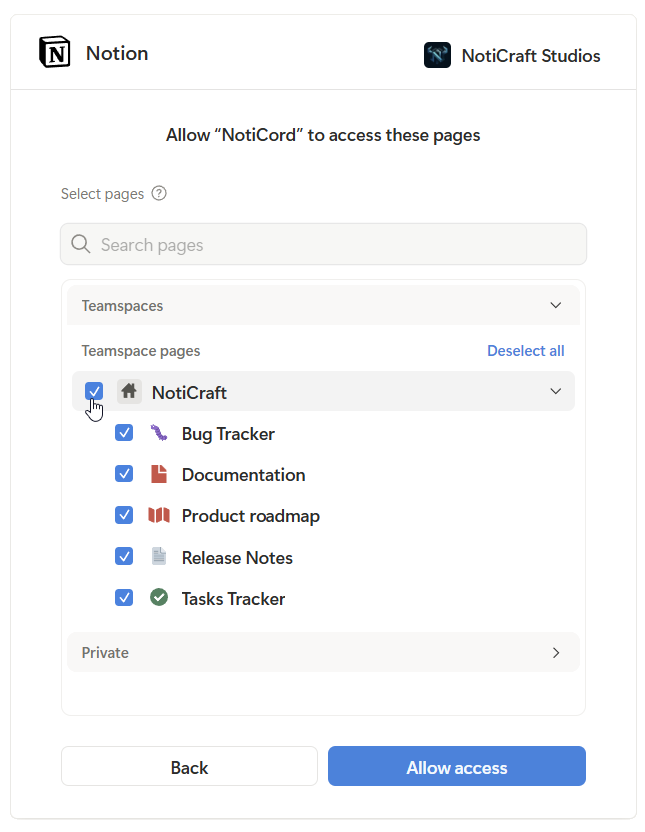
If a page or database looks missing
New access can take up to 1 minute to appear. If it still looks wrong, check that the page was shared with NotiCord or use Notion Access.
Add Discord
- Click Add Bot to Discord Server.
- Select the server where NotiCord should send notifications and add commands.
- Approve the Discord authorization and return to NotiCord. The signed-in Discord account must own the server or have Manage Server.
- Use Install for My Account only if you want direct messages and
/find, not server channels.
After Notion and Discord are connected, NotiCord can add /create-page and /pages so you can create and browse shared Notion pages from Discord right away.
3. Add a Discord feature
Send Notion updates to Discord
New items, status changes, comments, or grouped updates appear in Discord automatically.
Open notifications guide
Create Notion pages from Discord
Discord users fill out a short form that becomes a Notion task, page, bug report, or ticket.
Open create pages guide
Find Notion pages from Discord
Discord users open a saved list of tasks, pages, tickets, or database items.
Open page lists guide
Add a button menu in Discord
A Discord channel shows a message with buttons for common Notion actions.
Open Discord panels guide
4. Test it in Discord
| NotiCord feature | Discord test |
|---|---|
| Notifications | Make a matching change in Notion and wait for the Discord card |
| Create pages | Run the command and submit a test item |
| Page list | Run the command and open Details on a result |
| Button menu | Click a published button in Discord |
Notifications are not instant
Most notifications arrive within about 1 minute, but Notion batching means some take up to 5 minutes or longer.
5. Next steps
- Want grouped updates instead of one card per event? Use Scheduled Summaries.
- Want to update Notion from Discord? Use Quick Actions.
- Something looks blocked? Start in the Help Center.